Contents of the post:
- Creative Live! Cam Vista IM and Skype (Ubuntu 10.10+)
- Creative Live! Cam Vista IM (Debian Lenny e Ubuntu)
- Creative WebCam Live! (Ubuntu 8.10)
Creative Live! Cam Vista IM and Skype (Ubuntu 10.10+)
In order to make the webcam also compatible with Skype, one needs to install the gspca driver and libv4l.Installing needed packages:
sudo aptitude install mercurial build-essential linux-headers libncurses5-devRetrieving sources (from Douglas Schilling Landgraf V4L/DVB backports repository):
hg clone http://linuxtv.org/hg/v4l-dvb/Copy the configuration file:
cd v4l-dvb
sudo cp /boot/config-`uname -r` v4l/.config
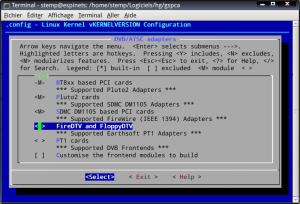
Note: currently FireDTV drivers do not compile easily (you need all the kernel sources) and are rarely used, we will disable them in the configuration.
Launch configuration:
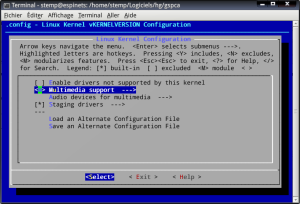
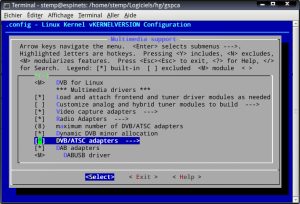
sudo make menuconfigDisable FireDTV support (Multimedia Support -> DVB/ATSC adapters -> set the option blank on FireDTV and FloppyDTV):
Now let’s take care of usb webcams (Multimedia Support -> Video Capture adapters -> V4L USB devices)
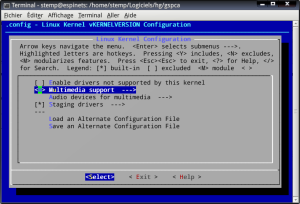
Activate new modules drivers (press M on those marked NEW), in gspca for example:
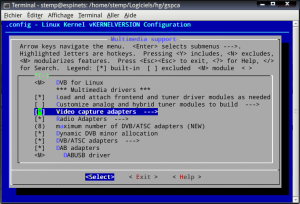
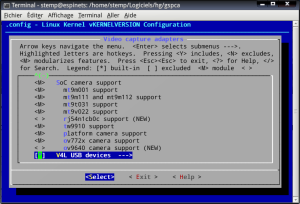
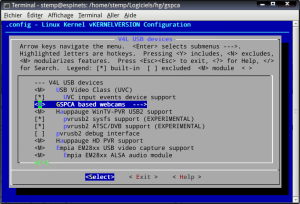
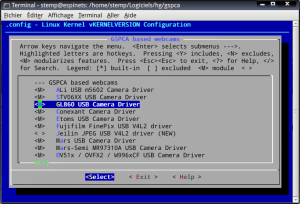
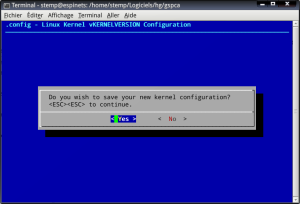
makesudo make installIf everything ok go to the next step, because the drivers also require the latest versions of libv4l.
For karmic it’s easy:
sudo add-apt-repository ppa:libv4lGet the latest version if necessary:
sudo aptitude update
sudo aptitude full-upgrade
In order to load skype with the new drivers:
cd /usr/binsudo mv skype skype.realgksudo gedit skypeadd the following lines
#!/bin/shLD_PRELOAD=/usr/lib/libv4l/v4l1compat.so /usr/bin/skype.real "$@"and make exxecutable the file
sudo chmod +x skypeRestart and enjoy your new drivers.
Ref: Le bazar de Stemp, Ispirazioni Informatiche .
Older versions
N.B. Con i kernel 2.6.27.xx le procedure sotto riportate falliscono. Esse si riferiscono ai kernel 2.6.24.xx.
Creative Live! Cam Vista IM (Debian Lenny e Ubuntu)
Scaricare il driver ov51x-jpeg (ad esempio tramitesubversion)
sudo aptitude install subversion
mkdir webcam-driver
svn co svn://rastageeks.org/svn/ov51x-jpeg/trunk webcam-driver
compilare
cd webcam-driversudo aptitude install linux-headers-`uname -r`
make
sudo make install
sudo modprobe ov51x-jpeginstallare il modulo del pacchetto
sudo aptitude update
sudo aptitude install ov51x-jpeg-source module-assistant
module-assistant a-i ov51x-jpeg
Per utilizzare la webcam con skype (versione 2.0.0.72) è necessario forzare un parametro all'avvio, inserendo nel file
/etc/modprobe.d/options la seguente riga
options ov51x-jpeg forceblock=1Nel caso di Ubuntu 8.04 o 9.04 è inltre necessario installare
libv4l
sudo aptitude install libv4l-0e lanciare skype con il comando
LD_PRELOAD=/usr/lib/libv4l/v4l1compat.so skypeConviene quindi rinominare l'eseguibile
sudo mv /usr/bin/skype /usr/bin/skype.reale creare un file
sudo nano /usr/bin/skypeinserendo la riga
LD_PRELOAD=/usr/lib/libv4l/v4l1compat.so /usr/bin/skype.reale renderlo eseguibile
sudo chmod 775 /usr/bin/skypeRef: ubuntu forums, rastageeks, fireteam.
Creative WebCam Live! (Ubuntu 8.10)
La Creative WebCam Live! viene riconosciuta da ubuntu 8.10 e funziona correttamente con alcuni programmi come Cheese, ma skype 2.0.0.72 , pur riconoscendola, mostra una schermata verde invece del video.E' quindi necessario installare il pacchetto
libv4l (o lib32v4l per la versione amd64)sudo aptitude install libv4lrimuovere skype se già installato
sudo aptitude purge skypee installare i repository Medibuntu
sudo wget http://www.medibuntu.org/sources.list.d/intrepid.list --output-document=/etc/apt/sources.list.d/medibuntu.listaggiungendo anche la chiave GPG
sudo apt-get update && sudo apt-get install medibuntu-keyring && sudo apt-get updatee quindi reinstallare skype da questo repository
sudo aptitude install skypeRef: Ispirazioni Informatiche.
